
Excel Functions for formatting :
- TRIM – Removes spaces from text
- UPPER – Converts Text to Uppercase
- LOWER – Converts Text to Lowercase
- PROPER – Capitalizes the first letter in each word of a text
Excel Functions for Text Extracting :
- LEFT – Returns the leftmost characters from a text value
- RIGHT – Returns the rightmost characters from a text value
- MID – Returns a specific no. of characters from a text string starting at the position you specify.
Example :

The first column ‘Names’ is our input column. I have used the above mentioned functions to show you the outputs.
- As you can see the column ‘TRIM’ has removed the spaces from each of the cells after applying the function TRIM(text).
- The column LEFT shows the first four extracted letters from our original input column ‘NAMES’. Please note that for the function LEFT we need to specify the number of letters that we want to extract. In this case I have used the formula LEFT(text,4). If you do not specify the position it will give you only the first letter.
- The ‘PROPER’ column has retained capital letter for the first letter of each word. Note that it assumed the word after the space as a new word and hence started with a capital letter. The rest of the letters are changed to small.
- Similarly the columns ‘UPPER’ and ‘LOWER’ have kept all the letters in uppercase and lowercase respectively. Please note that for the UPPER and LOWER functions I have used the text from the column TRIM and hence the spaces are already removed.
Functions for Replacing :
- REPLACE – Replaces part of a text string, based on the no. of characters you specify, with a different text string
- SUBSTITUTE – Substitutes new text for old text in a text string. Use SUBSTITUTE when you want to replace any text specific text in a string. Use REPLACE when you want to replace any text that occurs in a specific location in a text string.
Miscellaneous Functions :
- CONCAT – Joins several text items into one text item
- EXACT – Checks to see if two text values are identical
- LEN – Returns the no. of characters in a text string
- REPT –Repeats text a given no. of times.
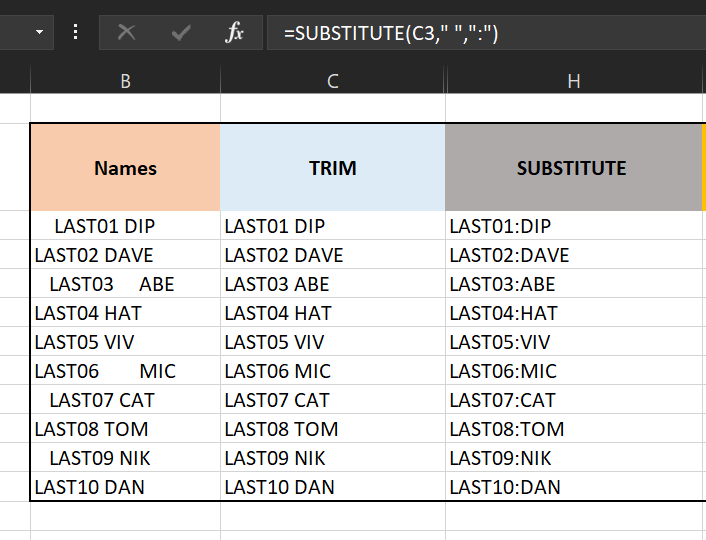
- See in the below table we have taken the original text from the column TRIM and then substituted the space between 2 words with a colon.
2. In the below example we have taken the original text from the column TRIM and you used a combination of FIND and REPLACE formula to select only the word after space and then replaced the space with symbol”>”.
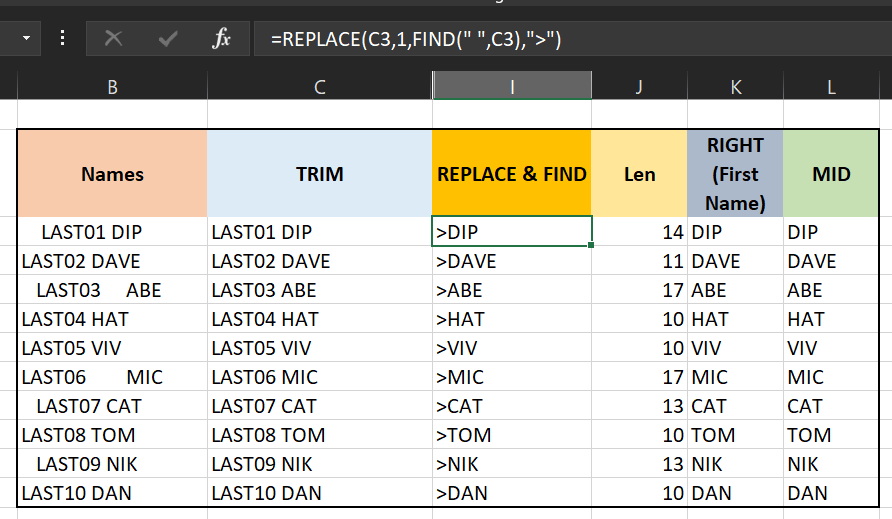
3. The LEN function is pretty simple and used for getting the number of letters in a text.

4. Now as we say earlier LEFT formula starts counting the letters of a text from left and similarly the RIGHT formula does it from the right. So if we want to select only the name part from the column TRIM, we need to specify the length of the names which is obviously different for each one of the. So the easy solution here is to use the LEN function here to specify the length and then using the FIND function to select the letters only after space. So this way the RIGHT function here will be able to identify the starting and ending positions and will return only the desired output.

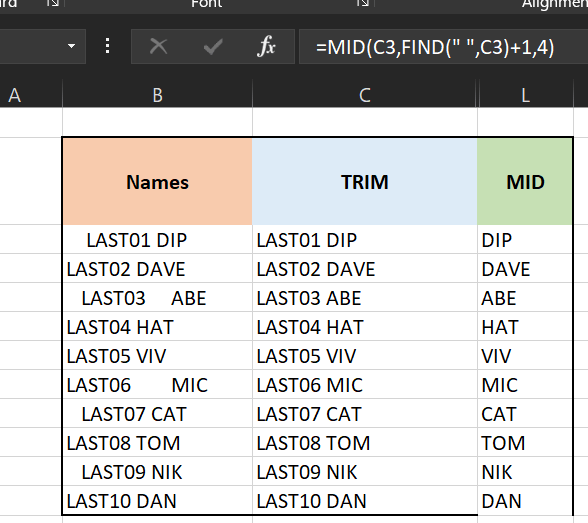
5. The MID function can also be used to extract only the name part from the column TRIM. Here we have used the FIND Function to select the text after space and also note that I have added +1 to specify to select the text after space as the function considers space as one character. After that I have mentioned 4 as 4 is the maximum length of the names provided.
5. CONCAT function is very useful to join several text items. As you can see in the below example, I have joined the text from column TRIM with a space, column TEXT, a space and then a text “STOP”.
